Build your community with AI,starting from your website.
Paste your website, or describe your idea in a sentence. AI picks a template, lays out your spaces and writes the welcome post; from a website it also brings over your colors, fonts, logo and copy. You review every part before anything is created.
How it works
From a link or a sentence to a community you can open
AI drafts; you decide. Nothing exists until you press create, and every part of the draft stays editable until then.
Start from a site or a sentence
Paste a public web page, your whole site or an RSS feed — or skip the link and answer a few questions about the topic, the audience and what members will do. The questions always work; the link is optional.
Review the draft
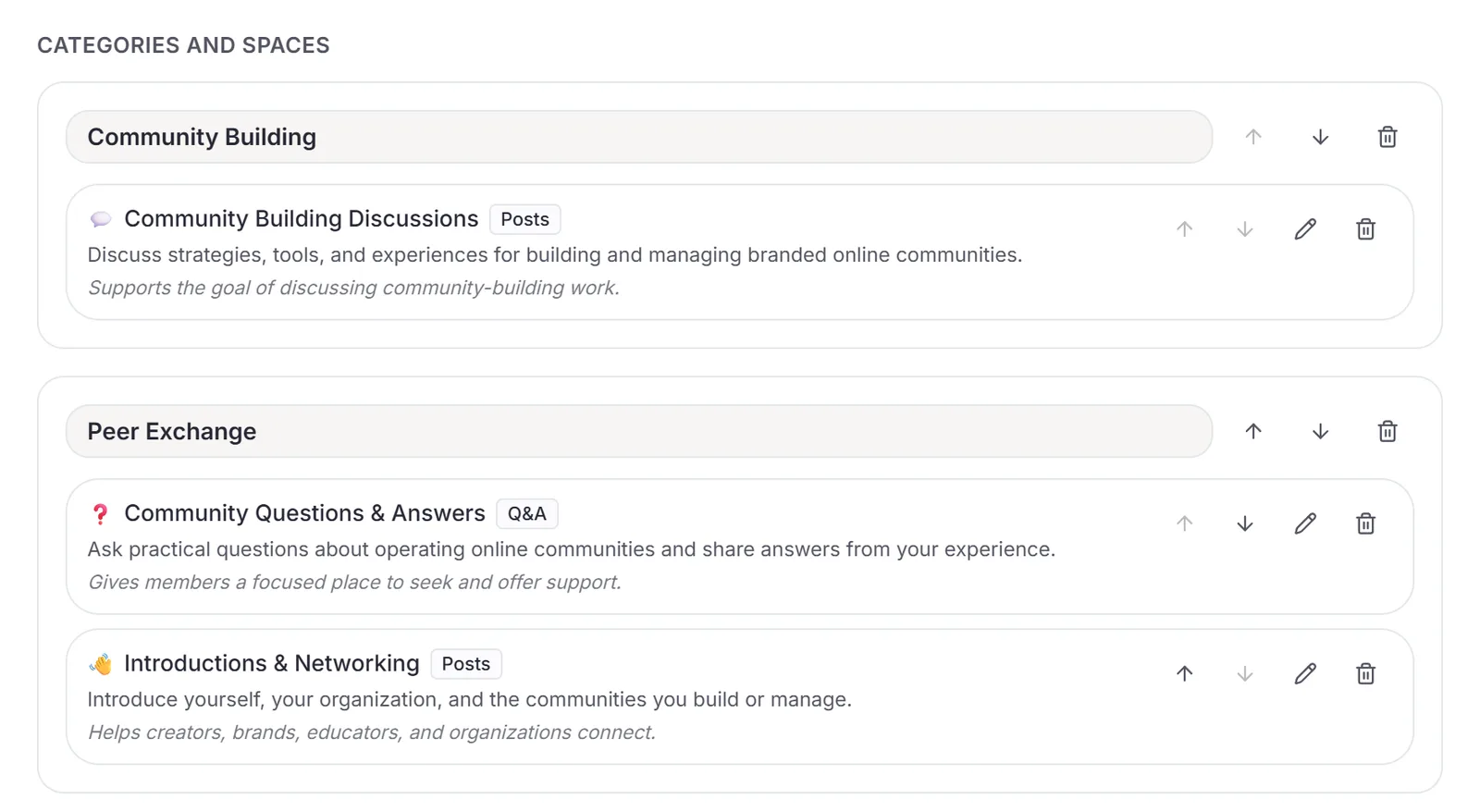
AI picks a template and lays out categories and spaces, who can see each one, and the welcome content. Edit anything by hand, or tell AI what to change in plain words.
Create, then keep tuning
Choose your web address and create the community. From there, hand over to Mateflow Assistant in your admin to finish the look, the copy and the AI assistant.
From your website
What AI brings over from your site
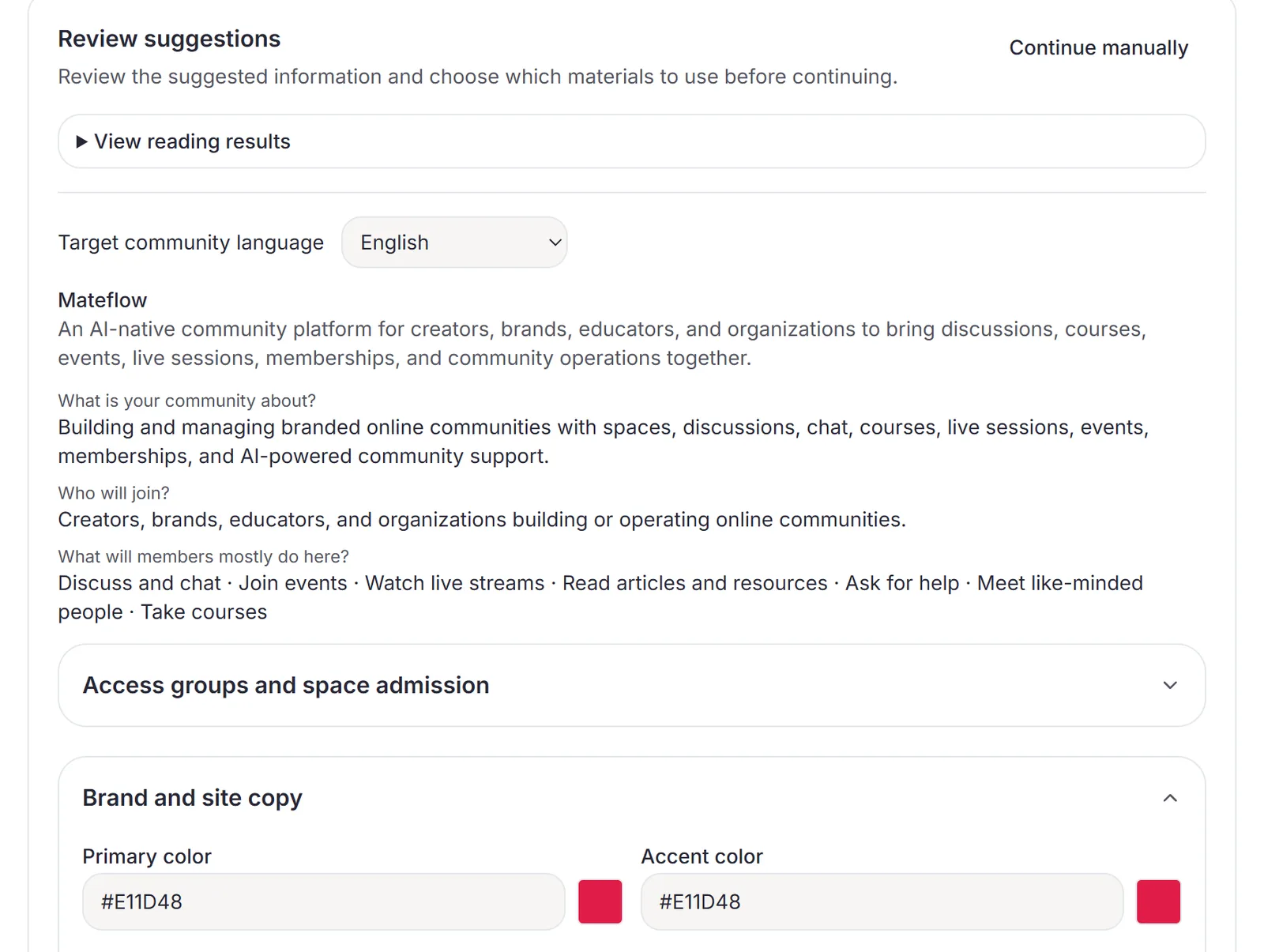
AI reads your public pages and suggests these for the new community. Each one is a suggestion you can keep, change or drop before you create.
Colors and fonts
Your primary and accent colors, and your body and heading fonts, for the community's theme.
Logo and icons
Your wordmark, square icon, site icon and sharing image — or keep the template's images instead.
Name, tagline and banner
The community's name, description and tagline, and the title and text of the home banner.
Contact and social links
A contact email and the social profiles your site links to.
Your AI assistant's voice
A name, a greeting and suggested questions for the members' AI assistant. Whether it's switched on is up to you.
Pages for the knowledge base
Pick which pages to import, so AI Copilot can answer members from them.
Use a site you own or have permission to use. Pages behind a sign-in or a bot check, or that only show their content in a browser, can't be read — the questions still work.
The draft
A starting structure you can push back on
The draft is a real community layout, not a mood board — and it's yours to rework before anything is created.
Categories and spaces
Feed, article, gallery, chat, radio, course or Q&A spaces, grouped into categories, each with its own visibility, posting rights and post review.
Welcome post and rules
A welcome post pinned in a discussion space, a welcome message for new members and community rules — all yours to edit.
Ask AI to change it
"Fewer spaces, and one for announcing events." Describe the change in plain words, or switch to another template and let AI rebuild the draft.
Every version kept
AI runs and your edits are saved as versions. Restore an earlier one at any time, and the later ones stay.
Plan checks before you create
The draft flags what your starting plan won't include — a space type, a public community, one course too many — before it becomes a surprise.
In your community's language
AI writes names and descriptions in the language you pick: English, Spanish, French, German, Portuguese, Japanese, Korean or Chinese.
After launch
Mateflow Assistant keeps tuning it
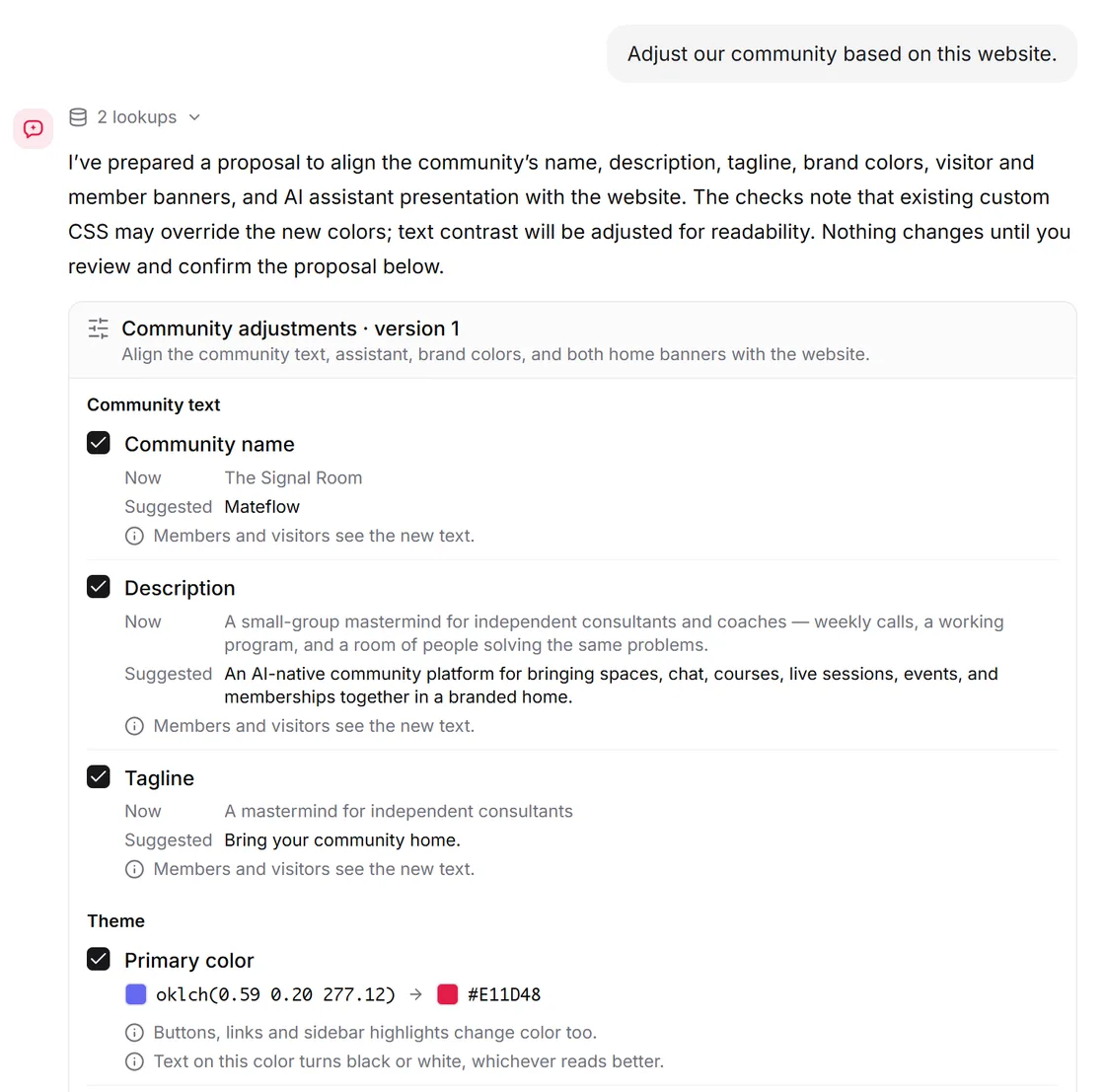
In your admin, add a website and the assistant reads it, compares it with your community and suggests changes. You choose which ones to apply, and nothing changes until you confirm.
Changes once you confirm
- Theme main and accent colors, body and heading fonts
- Home banner title and subtitle, for visitors and for members
- Social links in the footer
- The AI assistant's name, greeting and suggested questions, and whether it's on
- Community name, description and tagline
Still yours to do by hand
- Logos and images
- Custom CSS
- Banner images and buttons
- The rest of the footer
Look and assistant changes can be undone for 7 days, and every confirmed change is recorded in the admin audit log.
What it doesn't do
The AI builder sets up a new community. A few things stay outside it, on purpose.
It isn't a migration
Pages you import feed the knowledge base. They don't become posts or courses, and no members or discussions come over.
It doesn't set up payments
Paid membership plans and checkout are yours to configure once the community exists.
It reads public pages only
Nothing behind a sign-in or a bot check, and nothing a site's robots.txt asks automated readers to skip.
It has a daily allowance
AI runs while you build, and website reads, are counted per day. When they're used up, keep editing by hand; they reset the next day.
AI community builder — frequently asked questions
How building a community with AI works in Mateflow, from your website or from a few answers.
Yes. When you create a community, paste a public page, your whole site, or an RSS or Atom feed. AI reads the public pages and suggests the name, description, colors, fonts, logo, banner text, contact and social links and an AI assistant greeting, then drafts the categories and spaces. You review and edit every part before anything is created.
No. The website is an optional shortcut. Without one, describe what the community is about in a sentence and pick what members will mostly do there; AI drafts the structure and welcome content from your answers.
No. Pages you select are imported into the knowledge base so AI Copilot can answer members from them. They don't become posts or courses, and no members or discussions are moved. Moving an existing community is a separate migration.
Yes. In your admin, Mateflow Assistant can read a website and suggest changes to theme colors and fonts, home banner text, footer social links, and the AI assistant's name, greeting and suggested questions. Nothing changes until you confirm, and these changes can be undone for 7 days. Logos, images and custom CSS stay manual.
Building with AI is part of creating any new community, and Mateflow Assistant is included on every plan, Free included. AI runs while you build, and website reads, have a daily allowance that resets each day.
Pages that need a sign-in, ask for a bot check, only show their content after JavaScript runs in a browser, or are excluded by the site's robots.txt. Private and local network addresses are refused. When a site can't be read, you can still answer the questions and carry on.
Start from your website
Start with a 14-day free trial. Paste your site or describe your idea, and review the draft AI builds before anything is created.